-
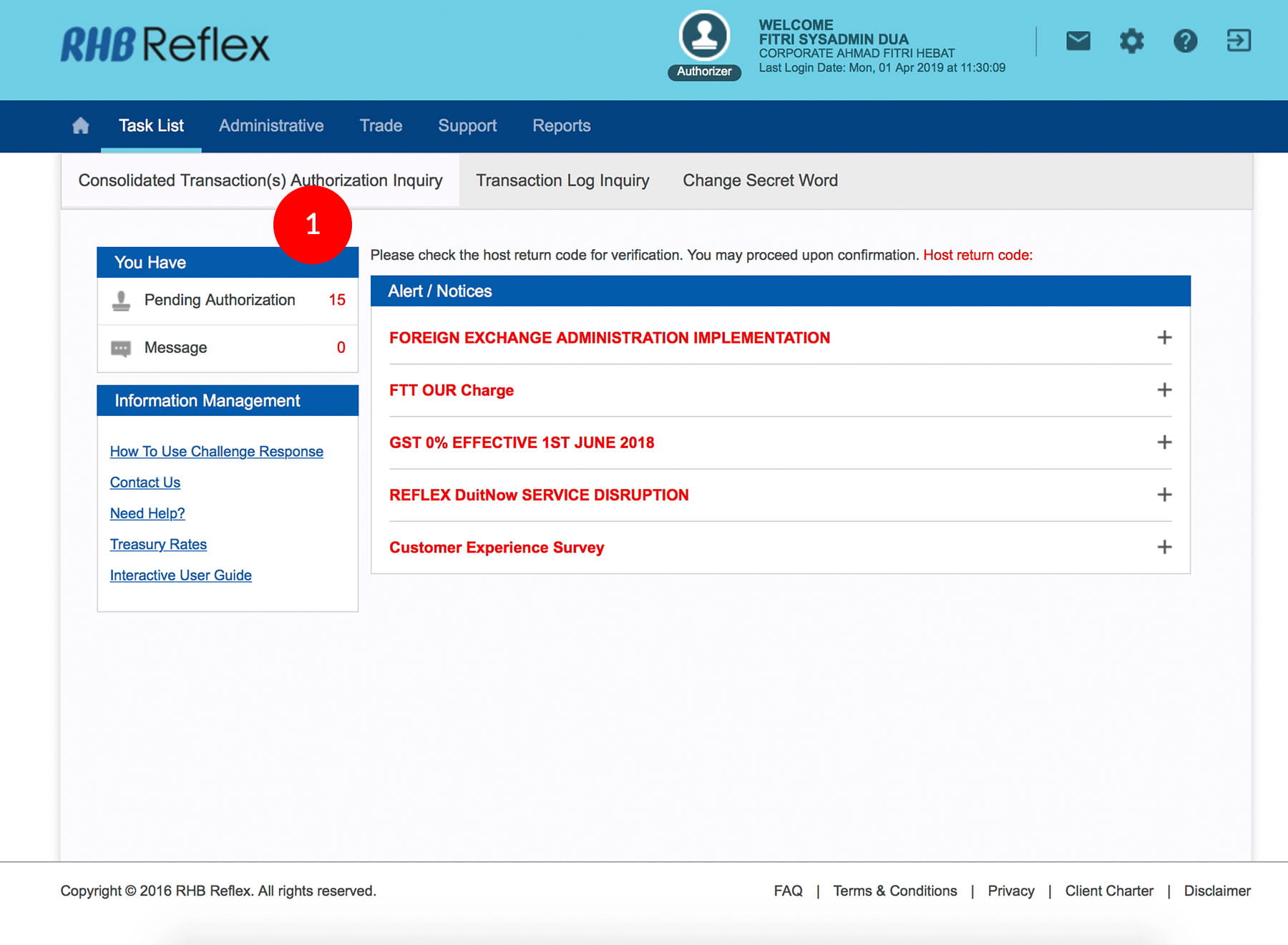
1.Login as Sysadmin2 and under the “Task List” tab; select “Consolidated Transaction(s) Authorization Inquiry”.
-
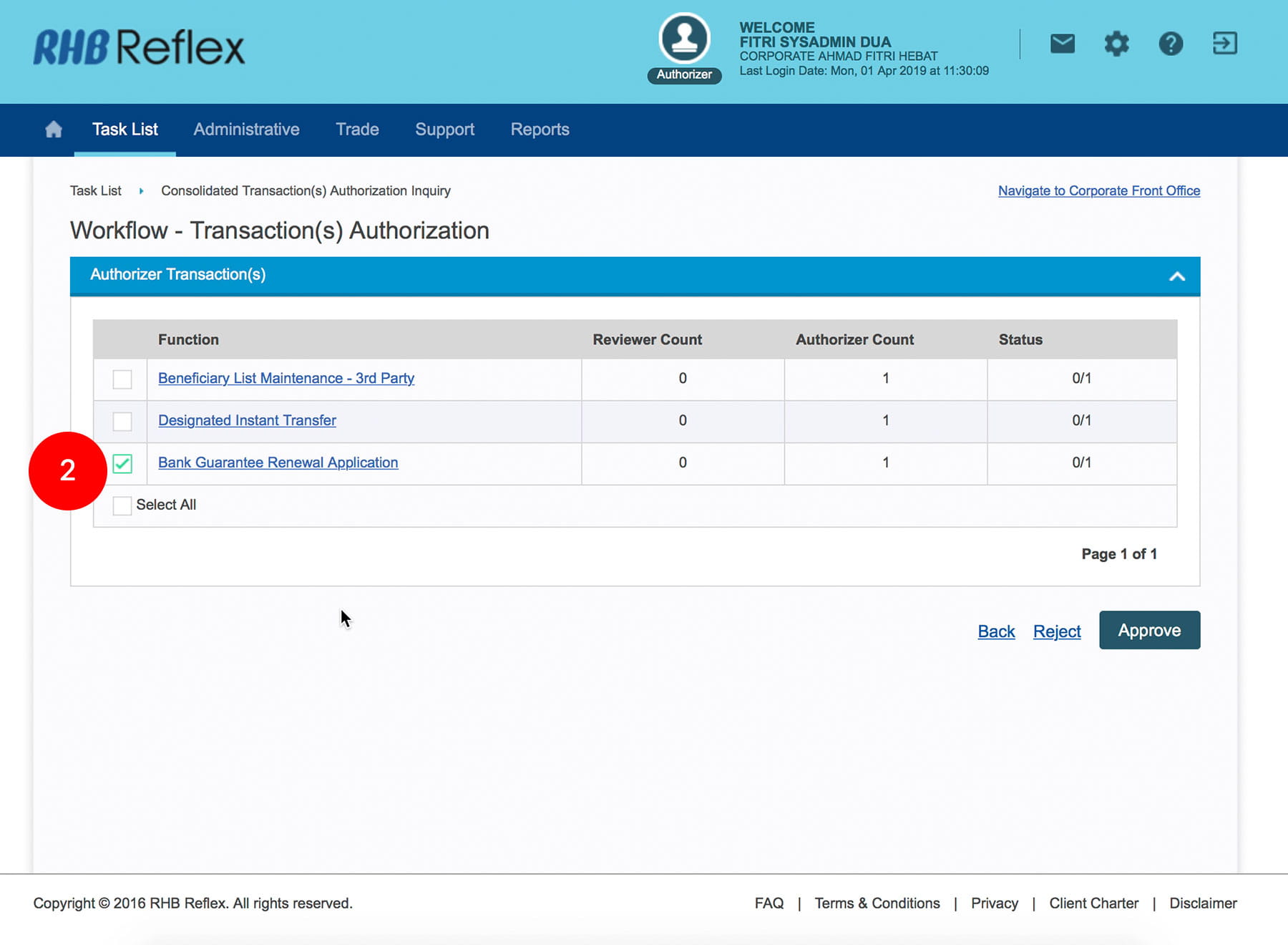
2.Tick the
Check Box.
-
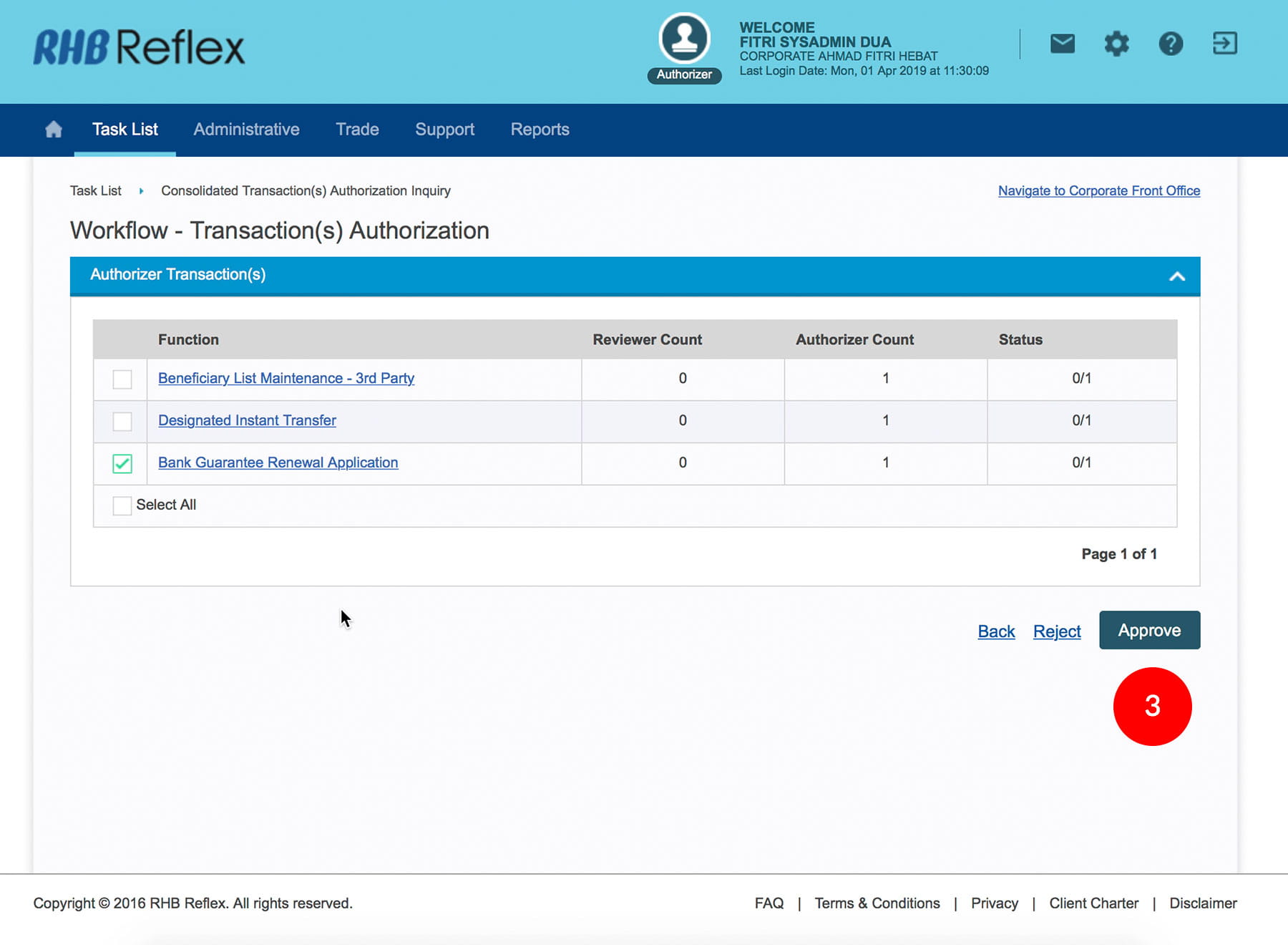
3.Click
to proceed to next step.
-
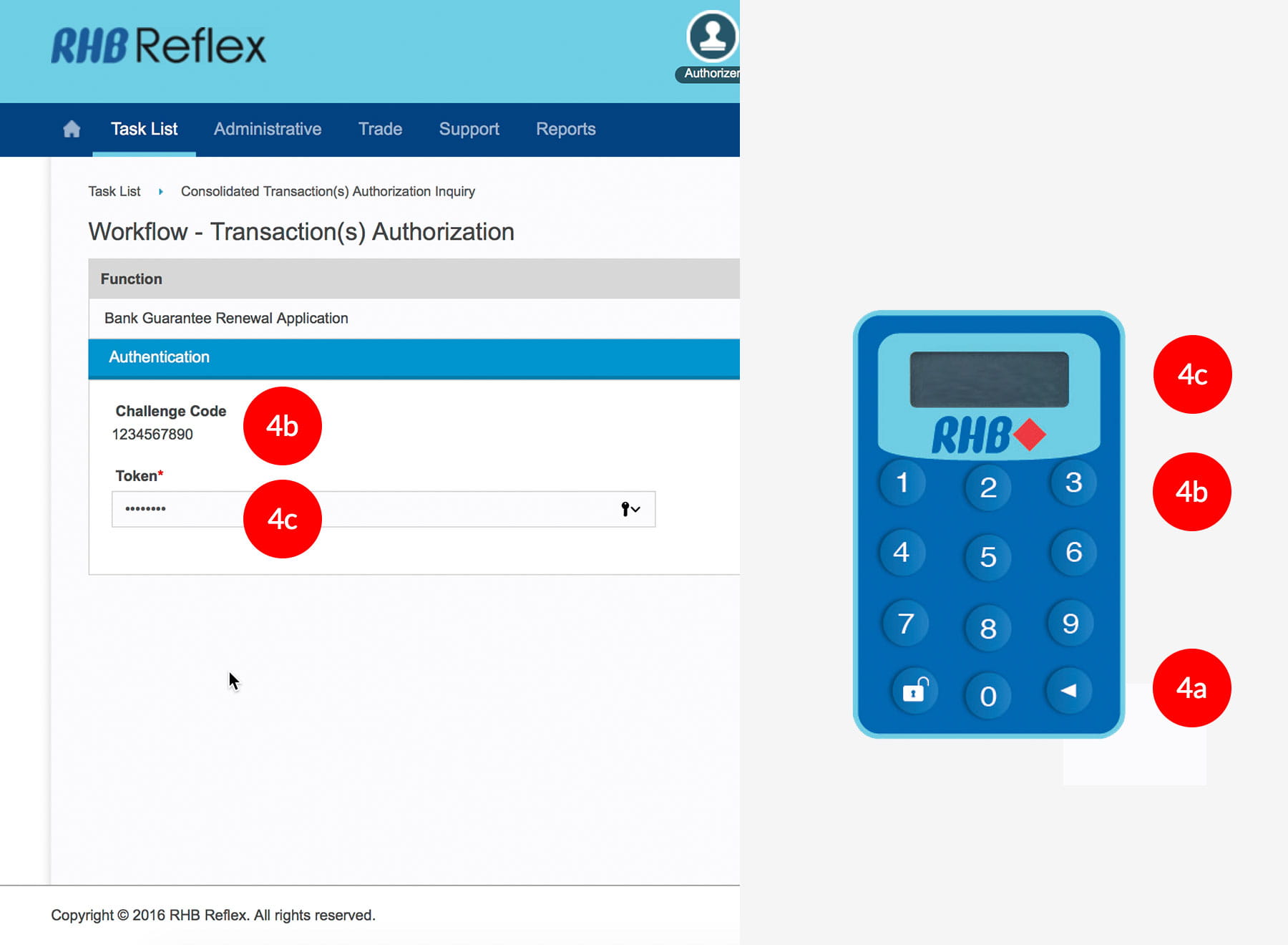
4.To authenticate your workflow setup, please refer steps below:
a) Press the
button and enter the PIN Number. The word
“APPLI” or "rHb" will be displayed and press
2.
b) Please press “2”, 5 spaces will be displayed on the token screen and then enter the “Challenge Code” into your Token. c) An 8-digit number will be generated by your Token and enter this number at the token field on your screen. -
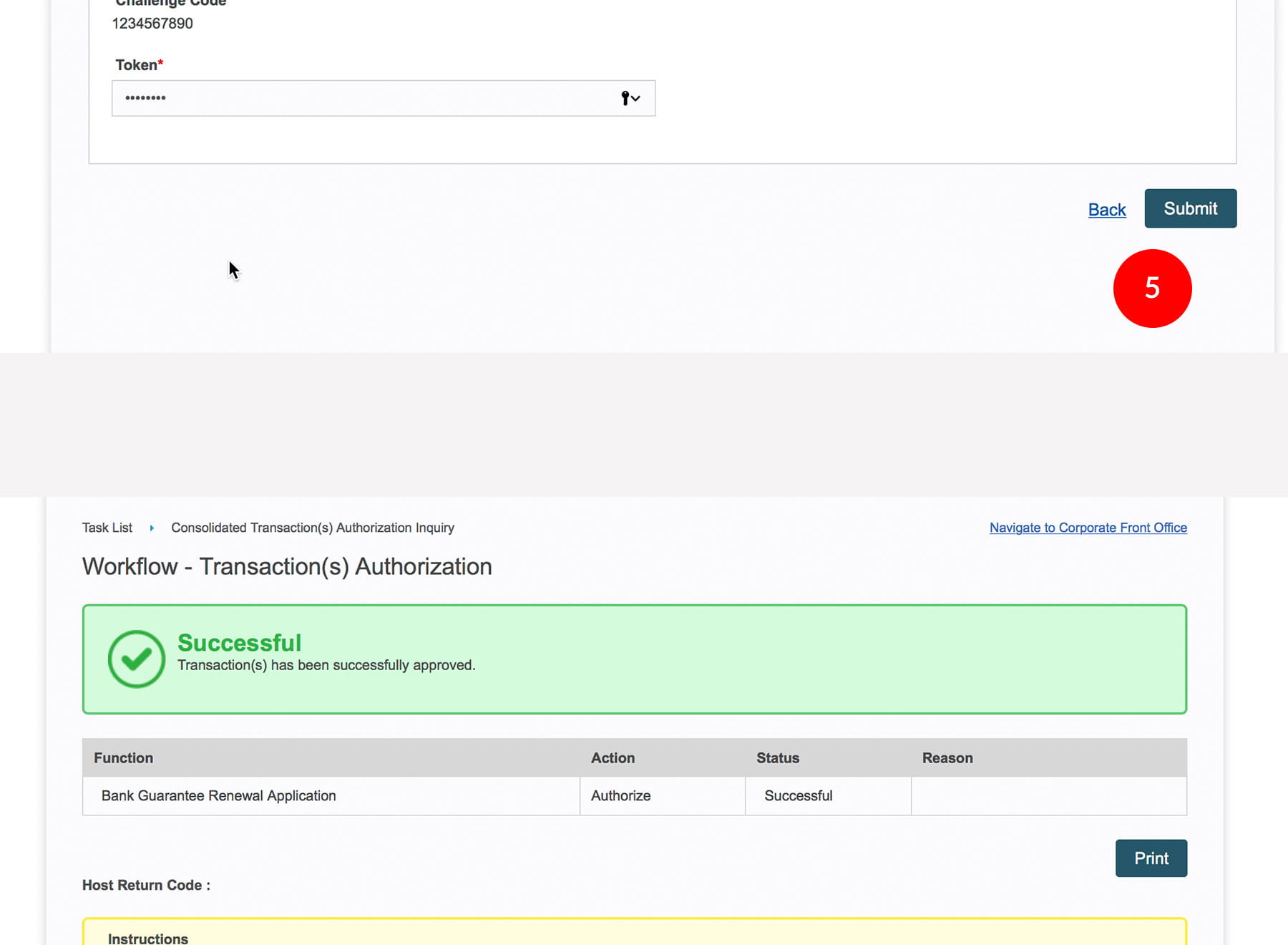
5.Click

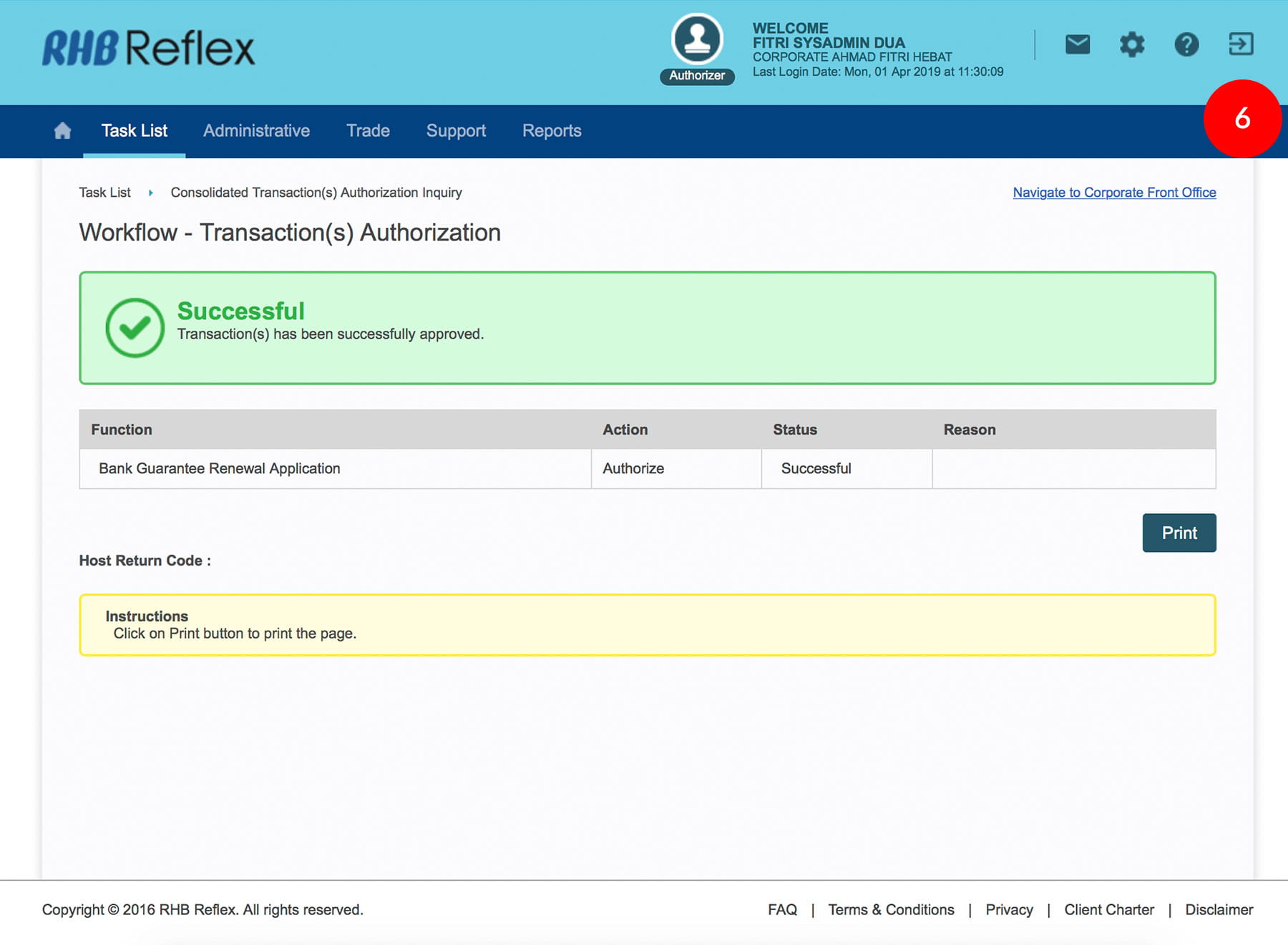
. A message “Authorization(s) has been successfully
approved.” will be displayed once the approval is
successful.
-
6.Click on
to logout
1 of
6
-
1.Login as Sysadmin2 and under the “Task List” tab; select “Consolidated Transaction(s) Authorization Inquiry”.
-
2.Tick the
Check Box.
-
3.Click
to proceed to next step.
-
4.To authenticate your workflow setup, please refer steps below:
a) Press the
button and enter the PIN Number. The word
“APPLI” or "rHb" will be displayed and press
2.
b) Please press “2”, 5 spaces will be displayed on the token screen and then enter the “Challenge Code” into your Token. c) An 8-digit number will be generated by your Token and enter this number at the token field on your screen. -
5.Click
. A message “Authorization(s) has been successfully
approved.” will be displayed once the approval is
successful.
-
6.Click on
to logout
-
1.Login as Sysadmin2 and under the “Task List” tab; select “Consolidated Transaction(s) Authorization Inquiry”.
-
2.Tick the
Check Box.
-
3.Click
to proceed to next step.
-
4.To authenticate your workflow setup, please refer steps below:
a) Press the
button and enter the PIN Number. The word
“APPLI” or "rHb" will be displayed and press
2.
b) Please press “2”, 5 spaces will be displayed on the token screen and then enter the “Challenge Code” into your Token. c) An 8-digit number will be generated by your Token and enter this number at the token field on your screen.
-
5.Click
. A message “Authorization(s) has been successfully
approved.” will be displayed once the approval is
successful.
-
6.Click on
to logout