

Reflex Premium Services
How do I authorize the transaction in auto debit payment (Authorizer)?
-
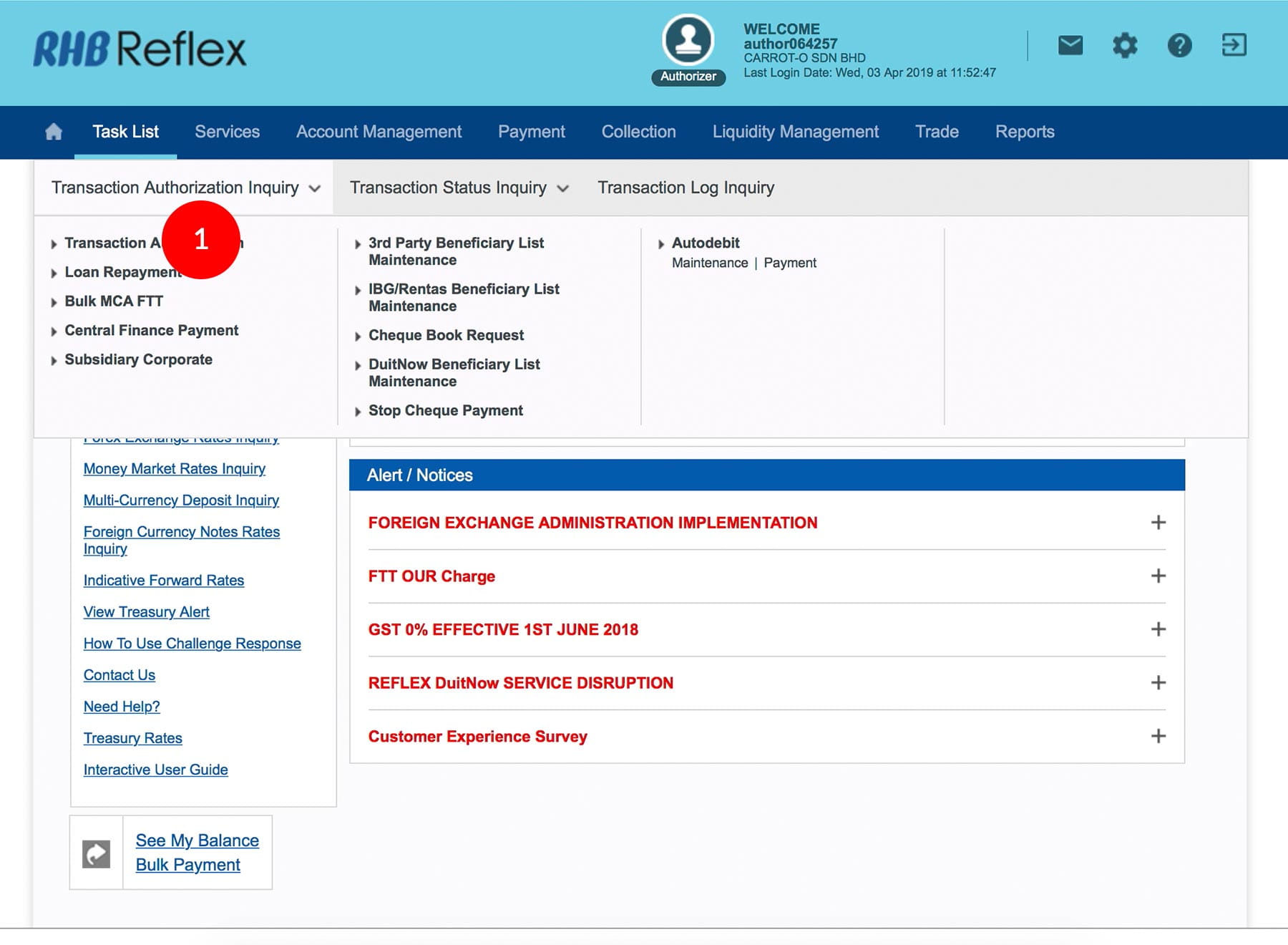
1.Login as Reviewer/Authorizer and under “Task List” tab; select “Transaction Authorisation Inquiry”.
-
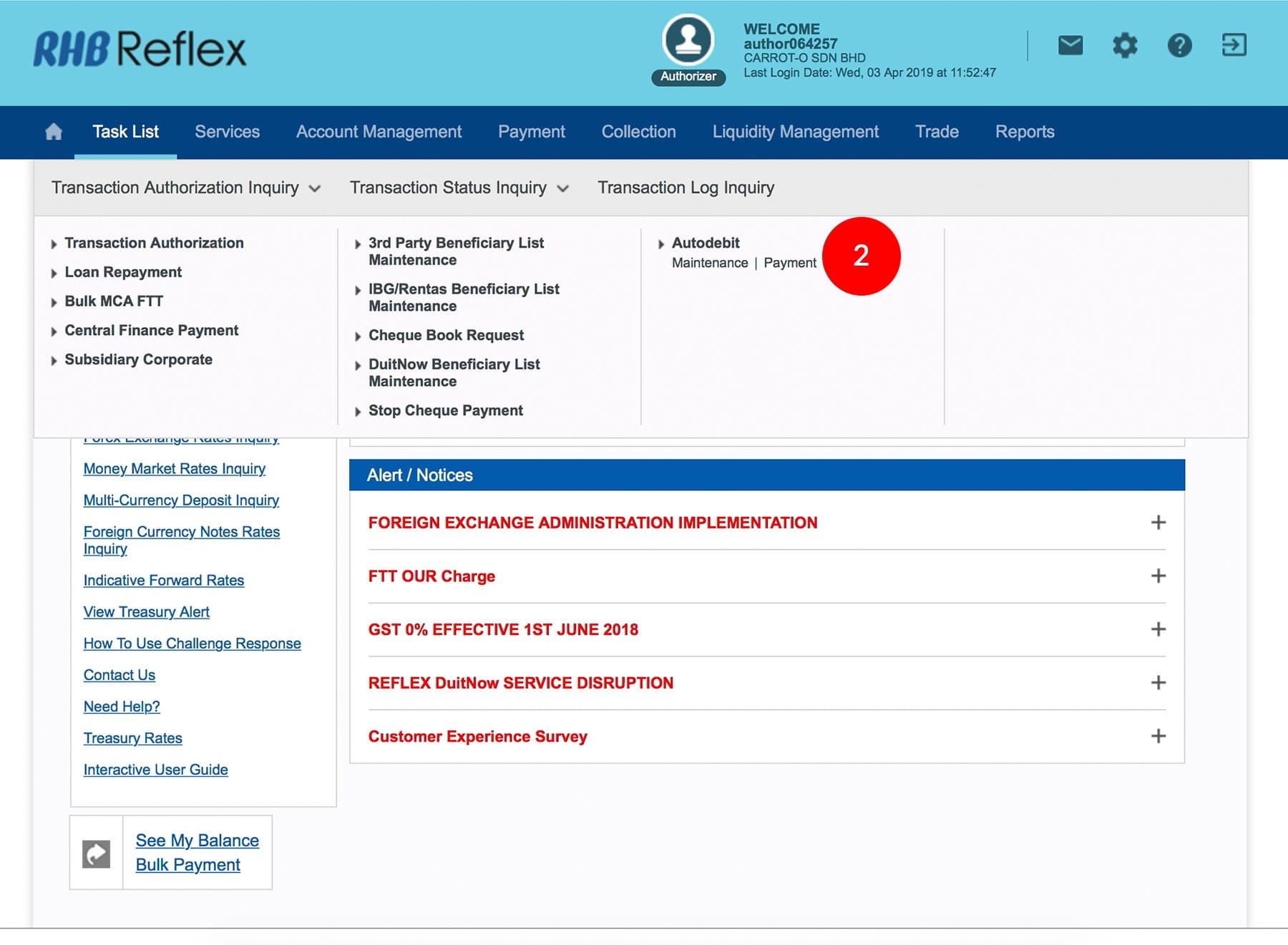
2.Click “Autodebit”. ; Click “Payment”.
-
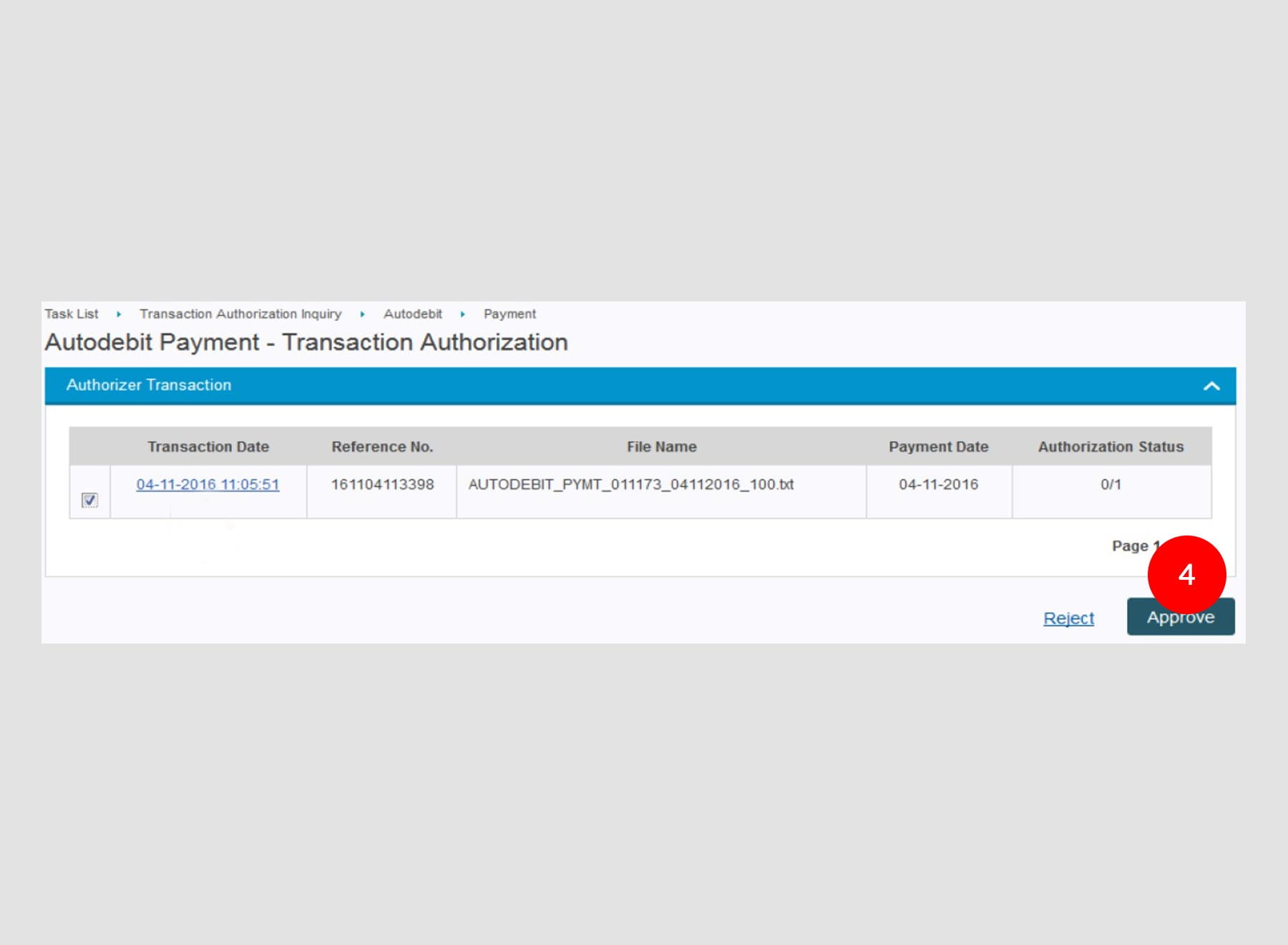
3.Click Transaction Date link to view full details or Tick
the
Check Box. -
4.Click
button to
proceed. -
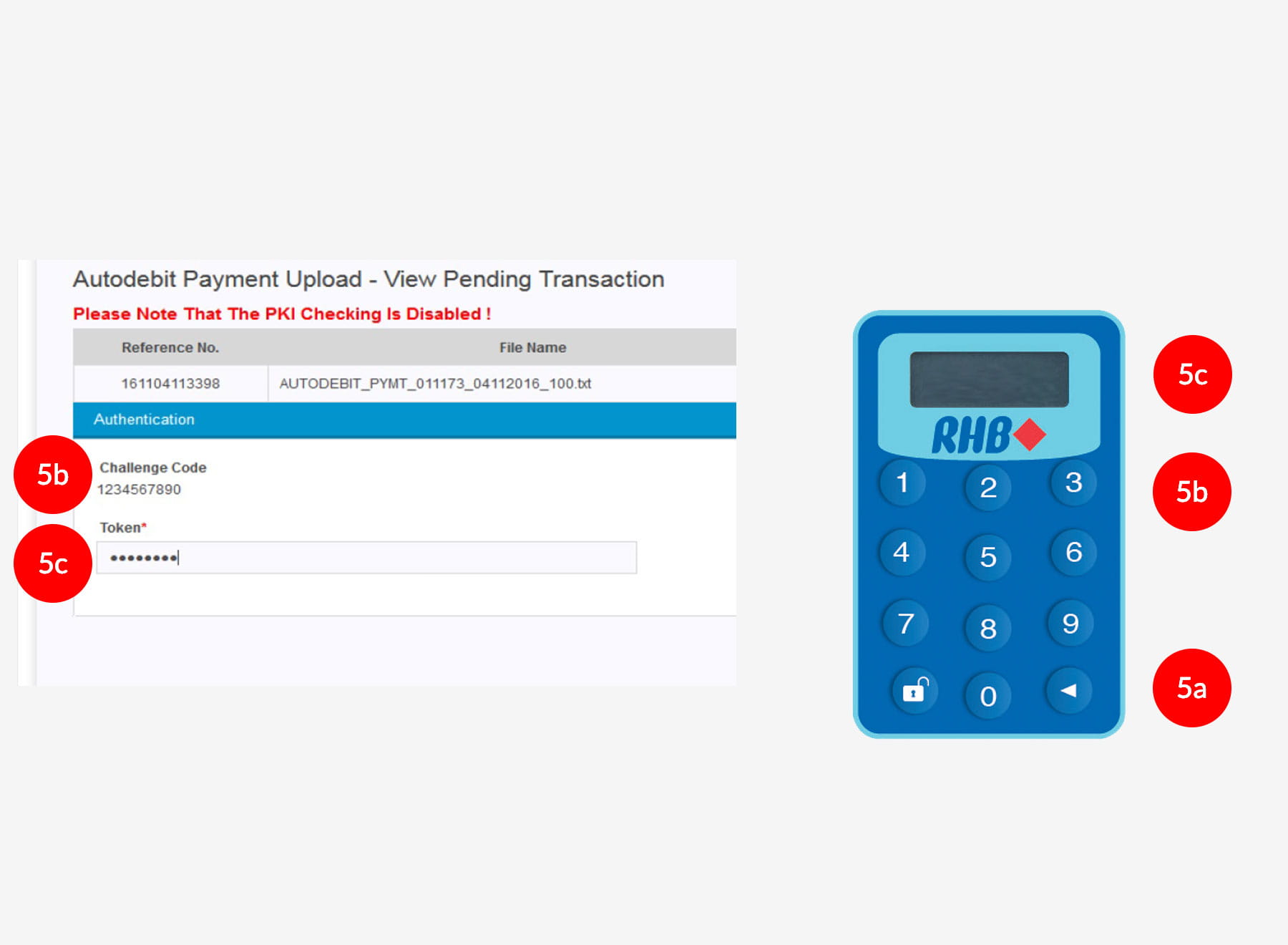
5.To authenticate your transaction, please refer steps below:
a) Press the
button on your token and then enter the token PIN
into the token.
b) The token screen will show APPLI, then Press 2. Enter the 5 digits Challenge Code that appear on the screen into Authorizer’s token. c) The Token will then generate 8 digits Passcode on TOKEN LCD screen. Enter this 8 digits Passcode into the Token field box. -
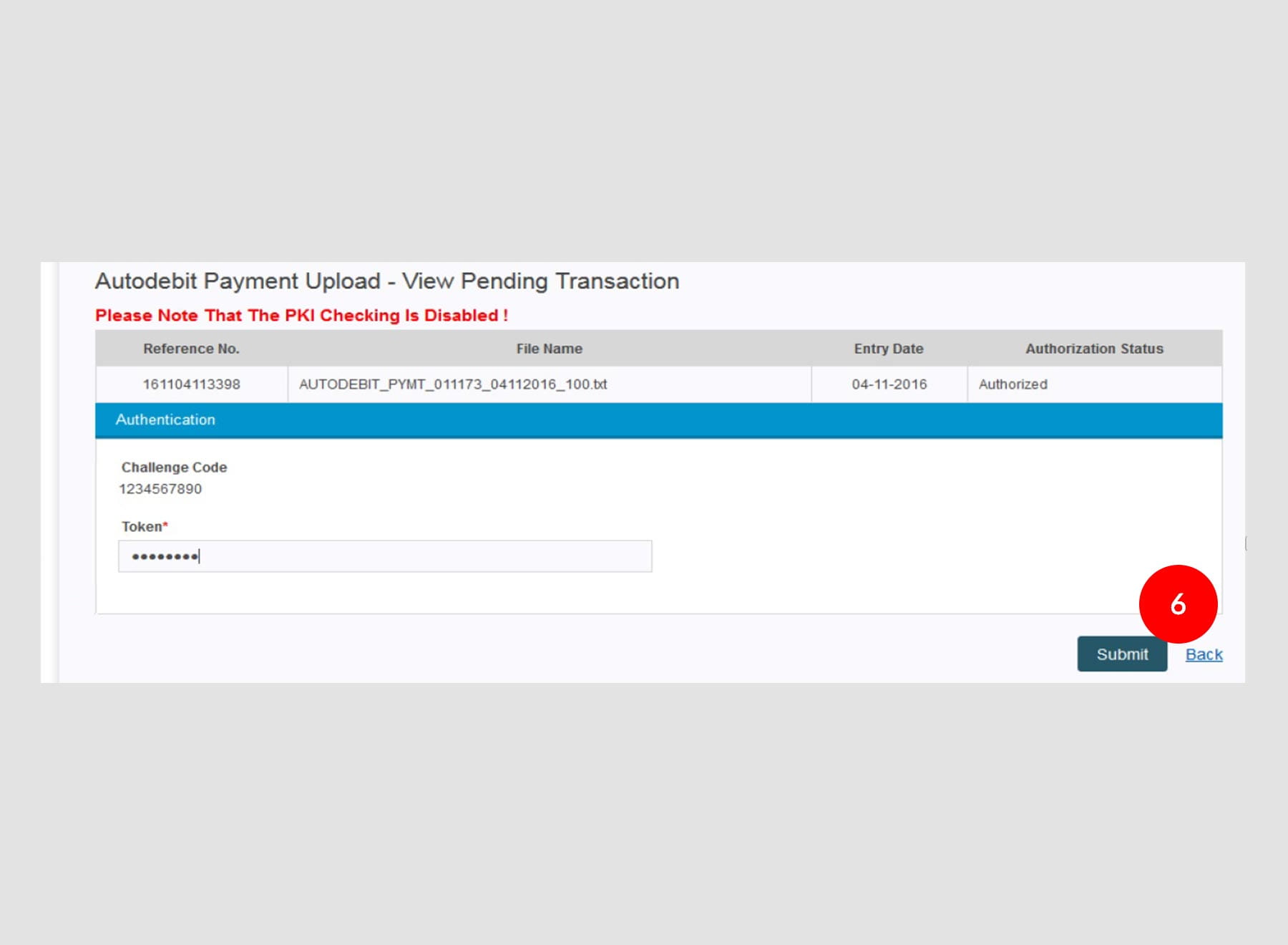
6.Click

upon
completion of the above. A message “Authorization is successful”
will be shown once the approval is successful. -
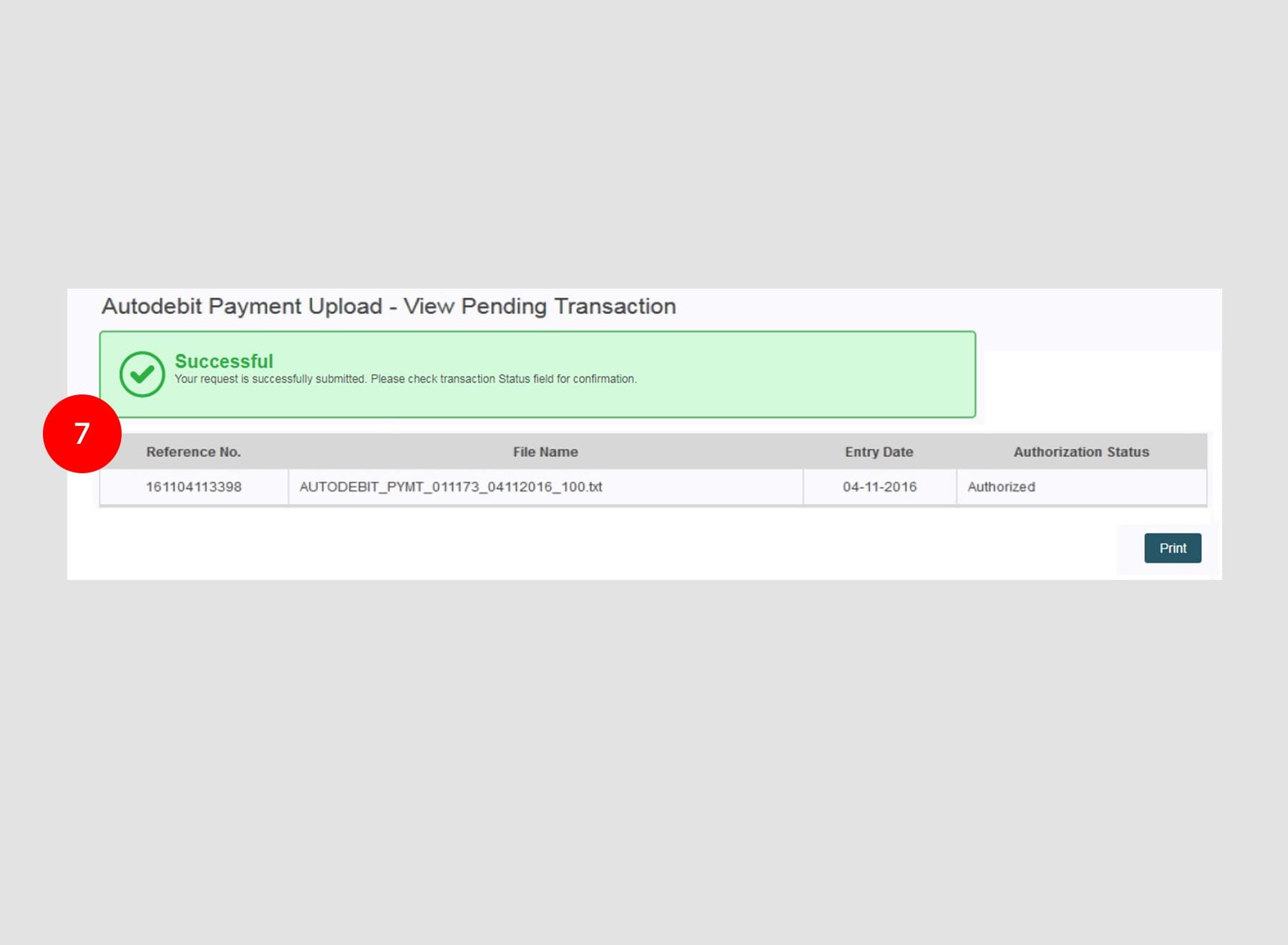
7.For Autodebit approved details, click “Transaction Status” to check on the payment status.
1 of
7
-
1.Login as Reviewer/Authorizer and under “Task List” tab; select “Transaction Authorisation Inquiry”.
-
2.Click “Autodebit”. ; Click “Payment”.
-
3.Click Transaction Date link to view full details or Tick
the
Check Box. -
4.Click
button to
proceed. -
5.To authenticate your transaction, please refer steps below:
a) Press the
button on your token and then enter the token PIN
into the token.
b) The token screen will show APPLI, then Press 2. Enter the 5 digits Challenge Code that appear on the screen into Authorizer’s token. c) The Token will then generate 8 digits Passcode on TOKEN LCD screen. Enter this 8 digits Passcode into the Token field box. -
6.Click
upon
completion of the above. A message “Authorization is successful”
will be shown once the approval is successful. -
7.For Autodebit approved details, click “Transaction Status” to check on the payment status.
-
1.Login as Reviewer/Authorizer and under “Task List” tab; select “Transaction Authorisation Inquiry”.
-
2.Click “Autodebit”. ; Click “Payment”.
-
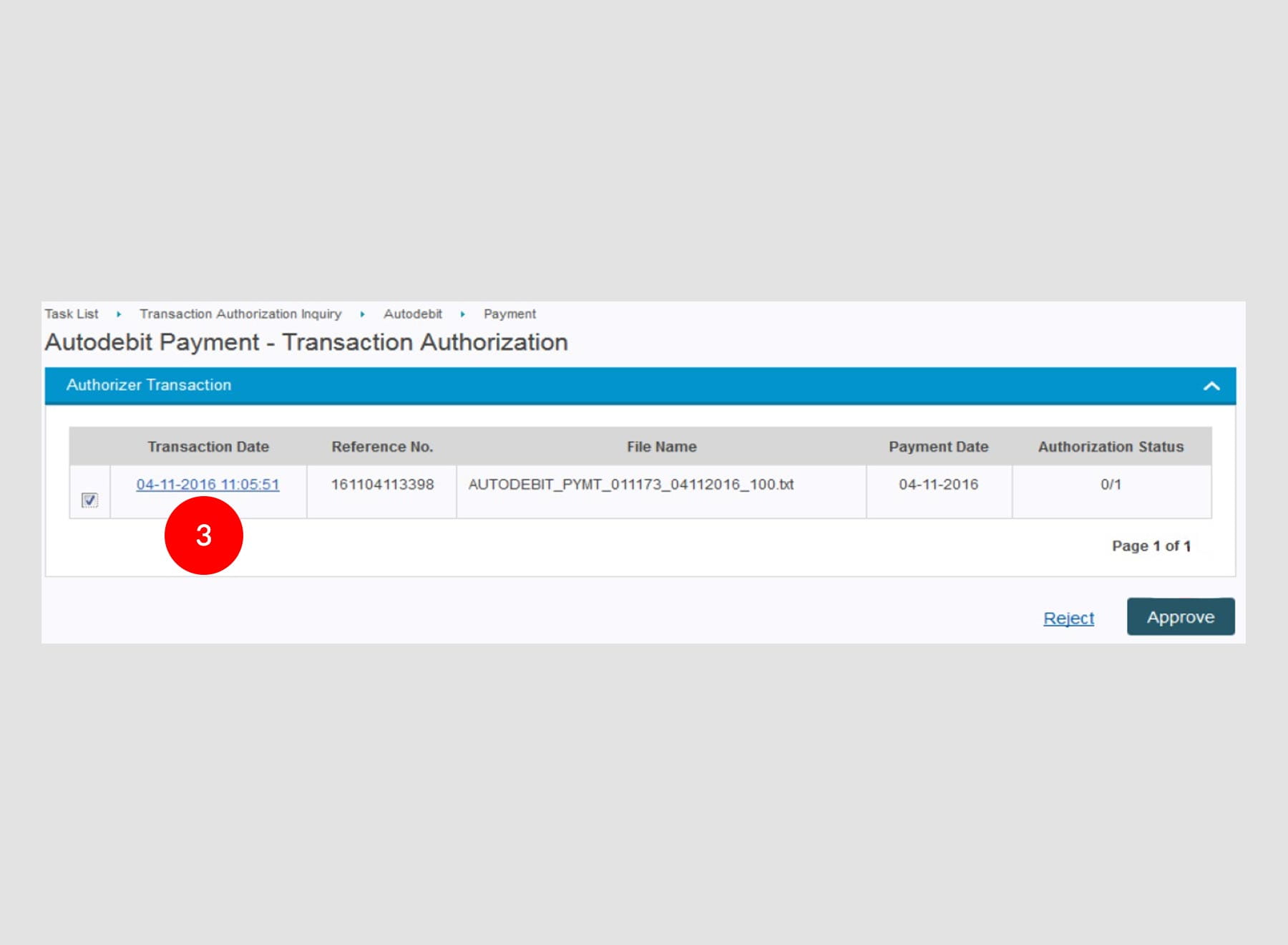
3.Click Transaction Date link to view full details or Tick
the
Check Box.
-
4.Click
button to
proceed.
-
5.To authenticate your transaction, please refer steps below:
a) Press the
button on your token and then enter the token PIN
into the token.
b) The token screen will show APPLI, then Press 2. Enter the 5 digits Challenge Code that appear on the screen into Authorizer’s token. c) The Token will then generate 8 digits Passcode on TOKEN LCD screen. Enter this 8 digits Passcode into the Token field box.
-
6.Click
upon
completion of the above. A message “Authorization is successful”
will be shown once the approval is successful.
-
7.For Autodebit approved details, click “Transaction Status” to check on the payment status.