

Reflex Premium Services
How to create the subsidiary/department maintenance using sysadmin1?
-
1.Login as Sysadmin1 and under the “Administrative” tab; select “User Maintenance”.
-
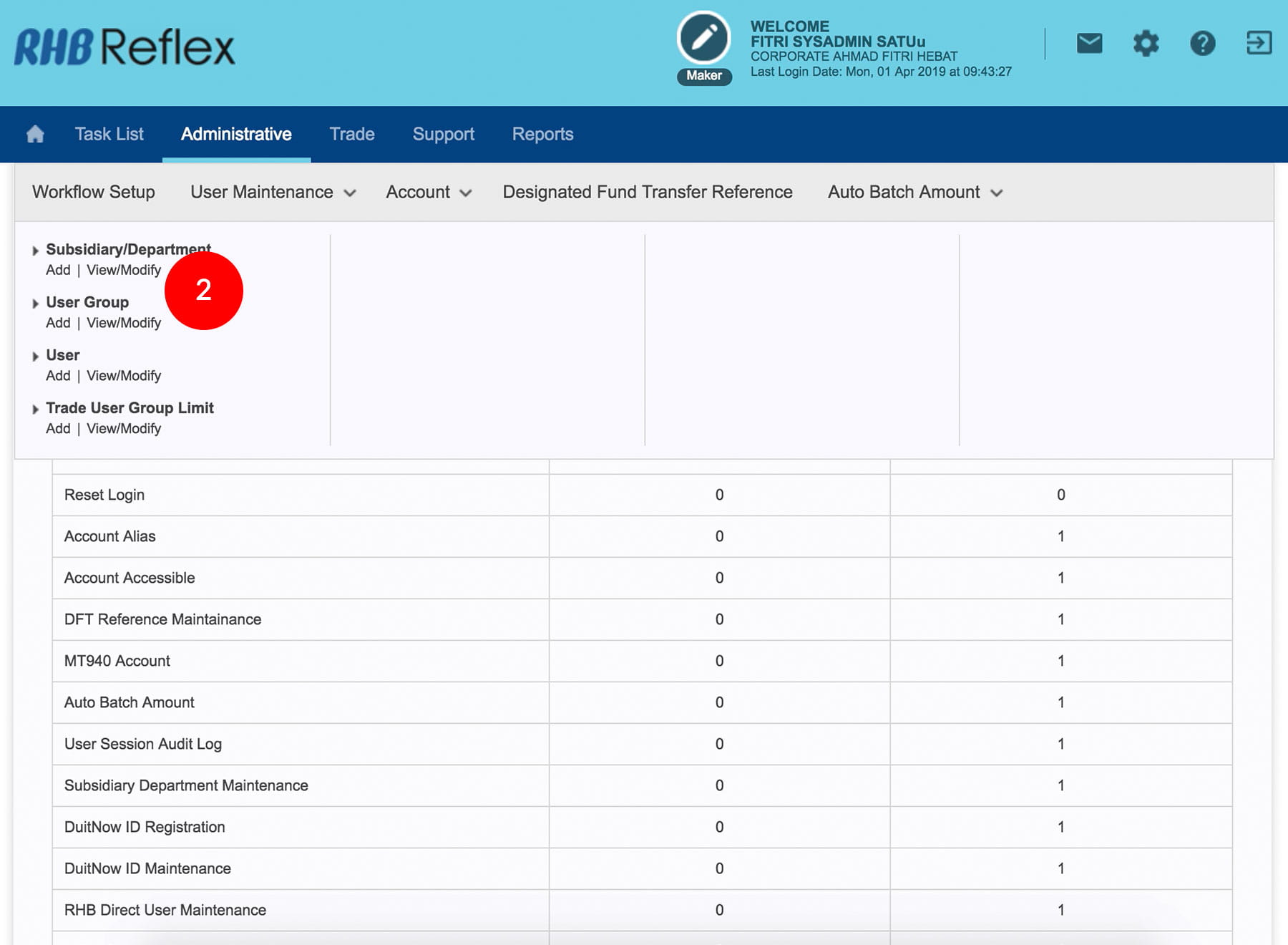
2.Select “Subsidiary/Department”; click “Add”.
-
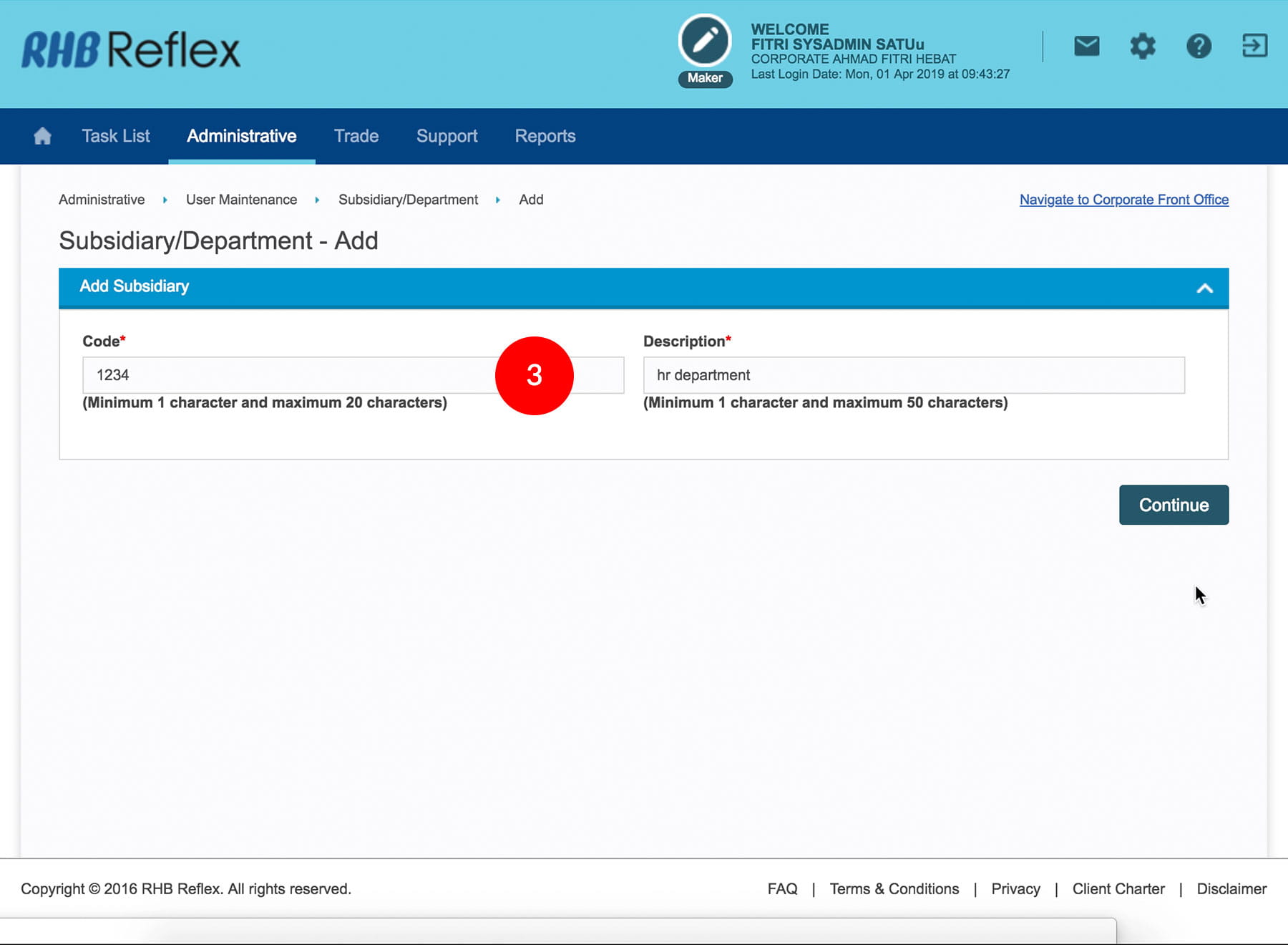
3.Type in a Code* - System identification number for the subsidiary / department (minimum 1 & maximum 20 characters).
-
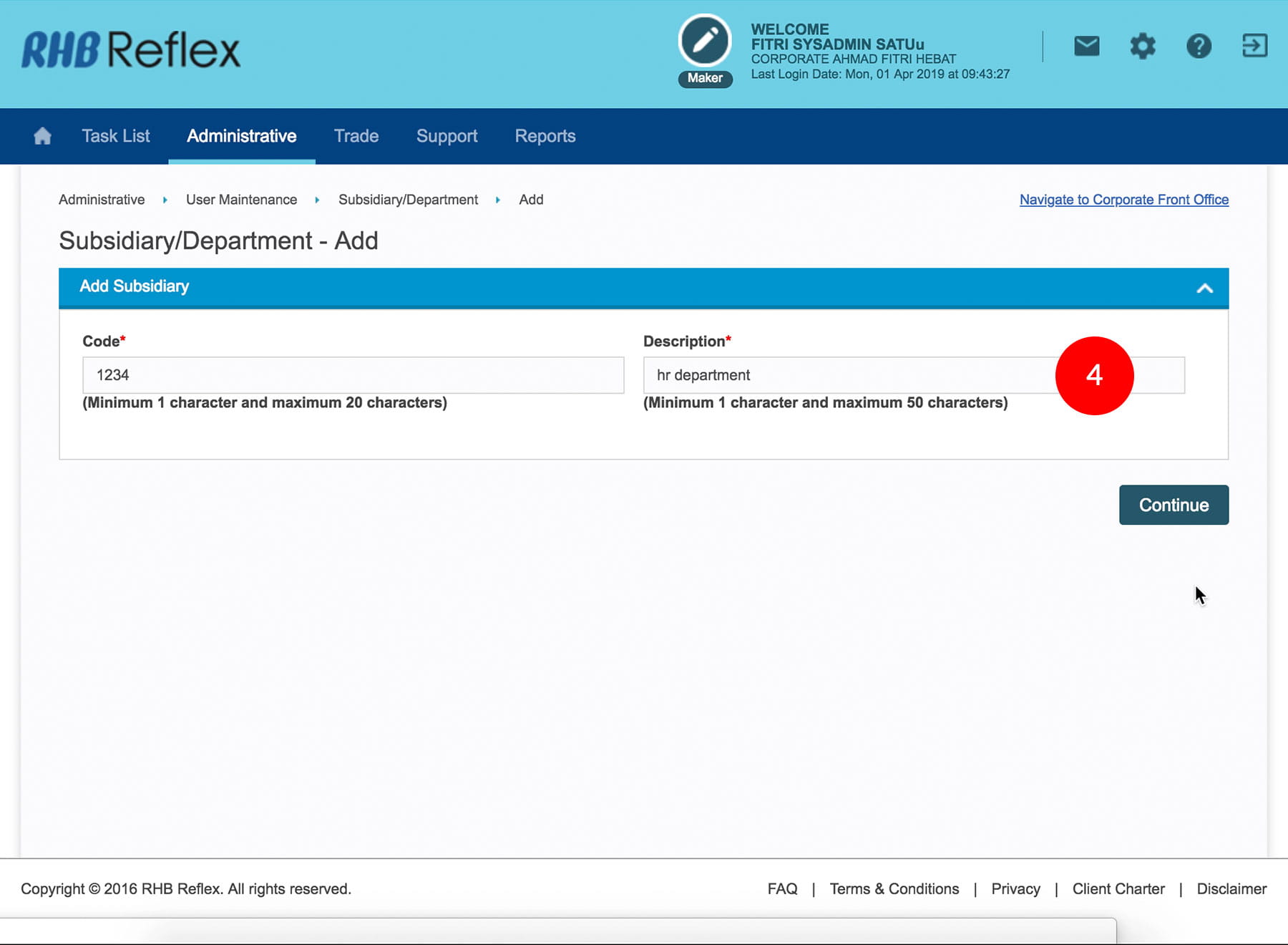
4.Type in the Description - for example: Accounts Department / HR Department/Finance Department.
-
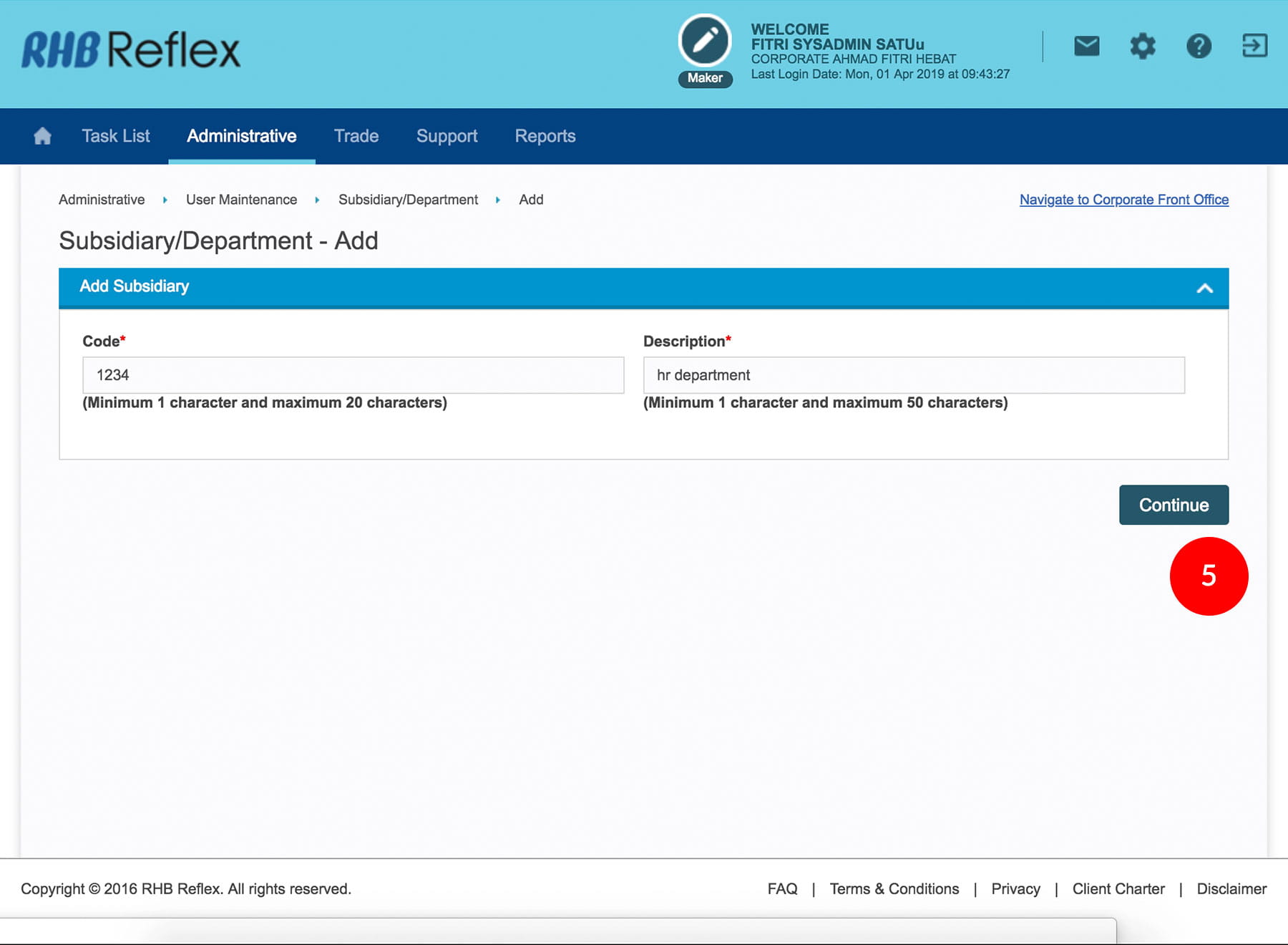
5.Click

to proceed to the next
step. -
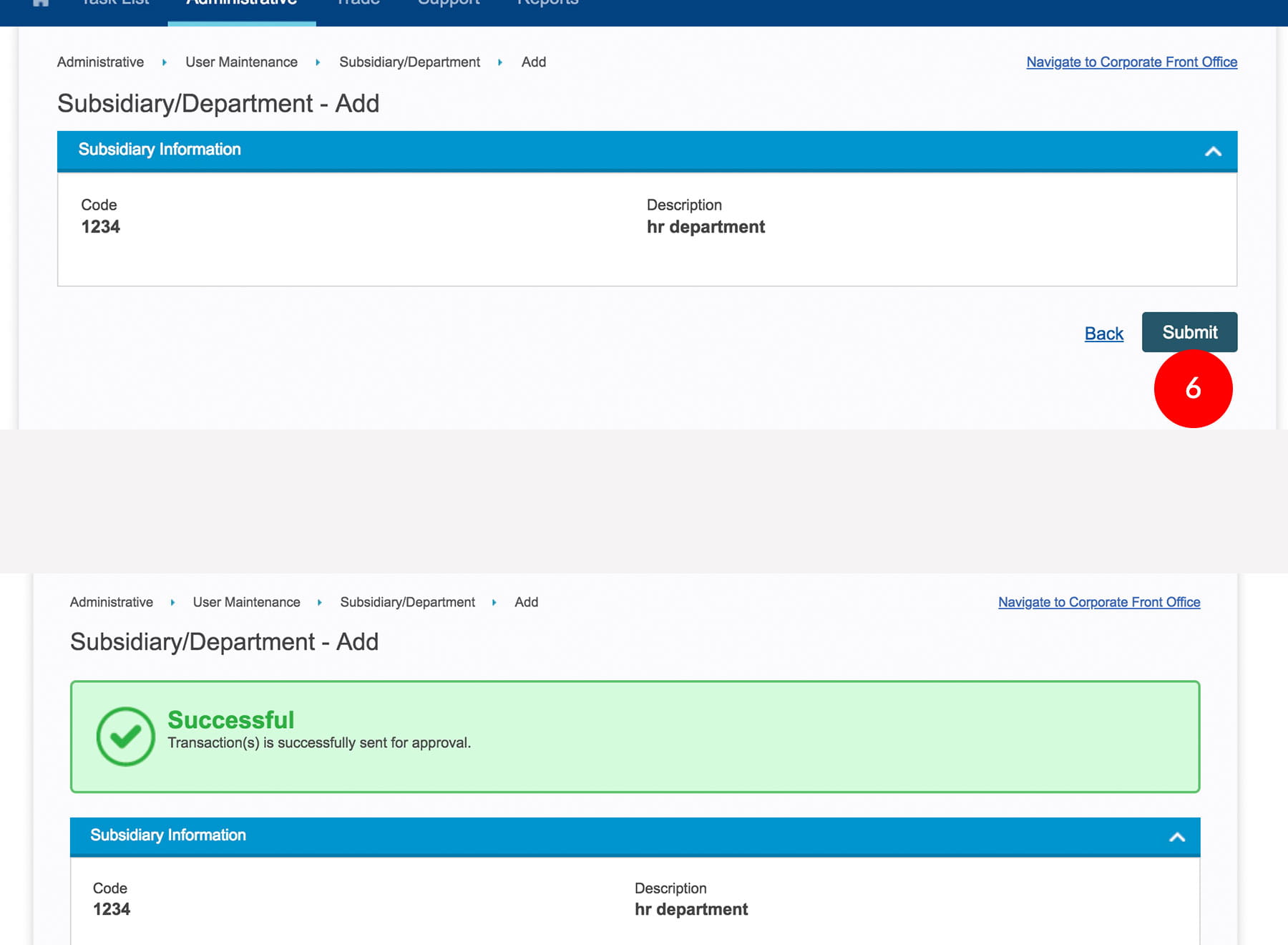
6.Click

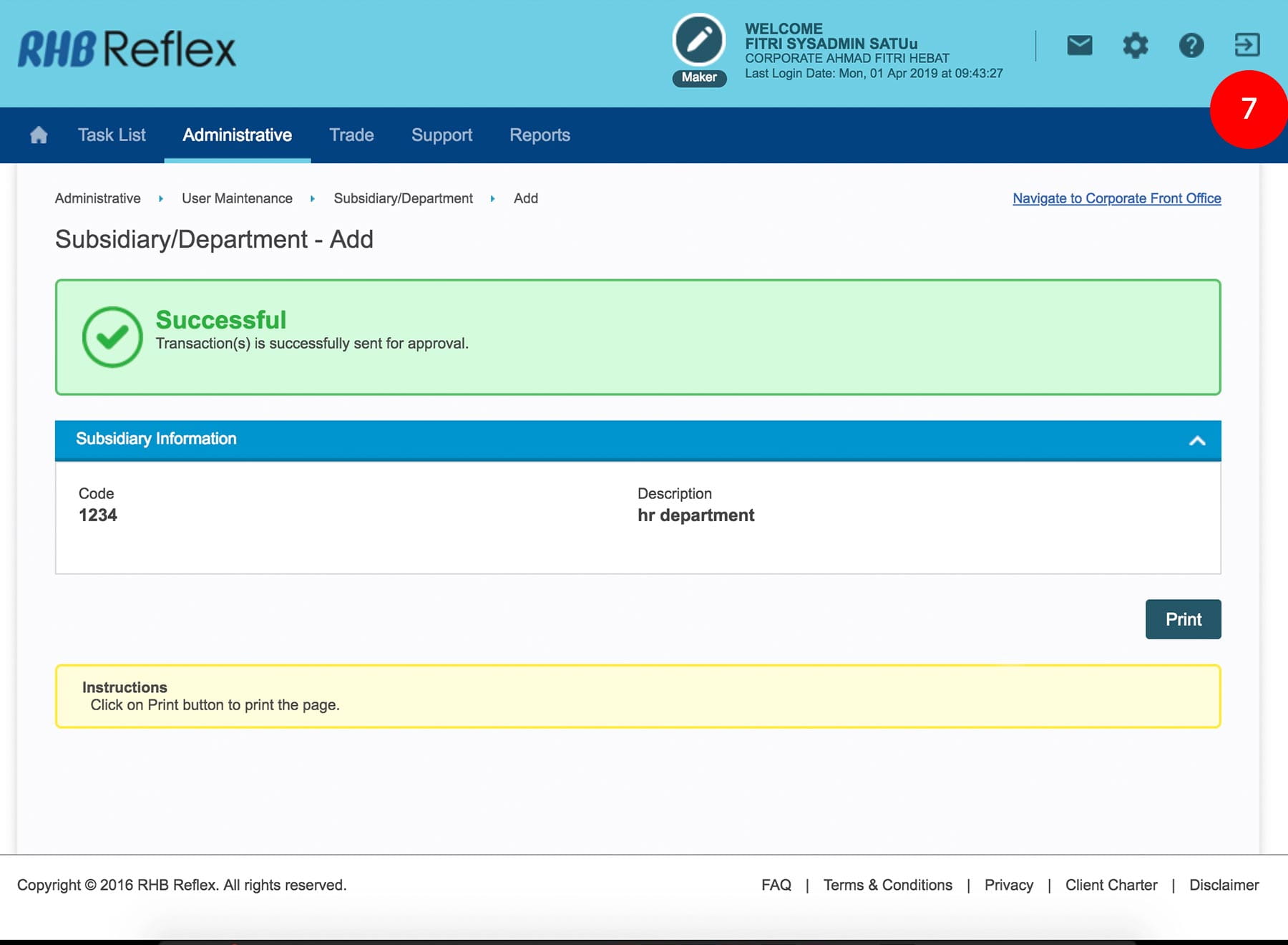
. A message of “Transaction(s) is successfully sent for approval” will be
displayed. This indicates that the creation has been sent to Sysadmin2 for approval. -
7.Click on
to Logout.
1 of 7
-
1.Login as Sysadmin1 and under the “Administrative” tab; select “User Maintenance”.
-
2.Select “Subsidiary/Department”; click “Add”.
-
3.Type in a Code* - System identification number for the subsidiary / department (minimum 1 & maximum 20 characters).
-
4.Type in the Description - for example: Accounts Department / HR Department/Finance Department.
-
5.Click
to proceed to the next
step. -
6.Click
. A message of “Transaction(s) is successfully sent for approval” will be
displayed. This indicates that the creation has been sent to Sysadmin2 for approval. -
7.Click on
to Logout.
-
1.Login as Sysadmin1 and under the “Administrative” tab; select “User Maintenance”.
-
2.Select “Subsidiary/Department”; click “Add”.
-
3.Type in a Code* - System identification number for the subsidiary / department (minimum 1 & maximum 20 characters).
-
4.Type in the Description - for example: Accounts Department / HR Department/Finance Department.
-
5.Click
to proceed to
the next step.
-
6.Click
. A message of
“Transaction(s) is successfully sent for approval” will
be displayed. This indicates that the creation has been sent to Sysadmin2 for
approval.
-
7.Click on
to
Logout.