

Reflex Premium Services
How do I create Trade User Group Limit?
via
System Admin 1
-
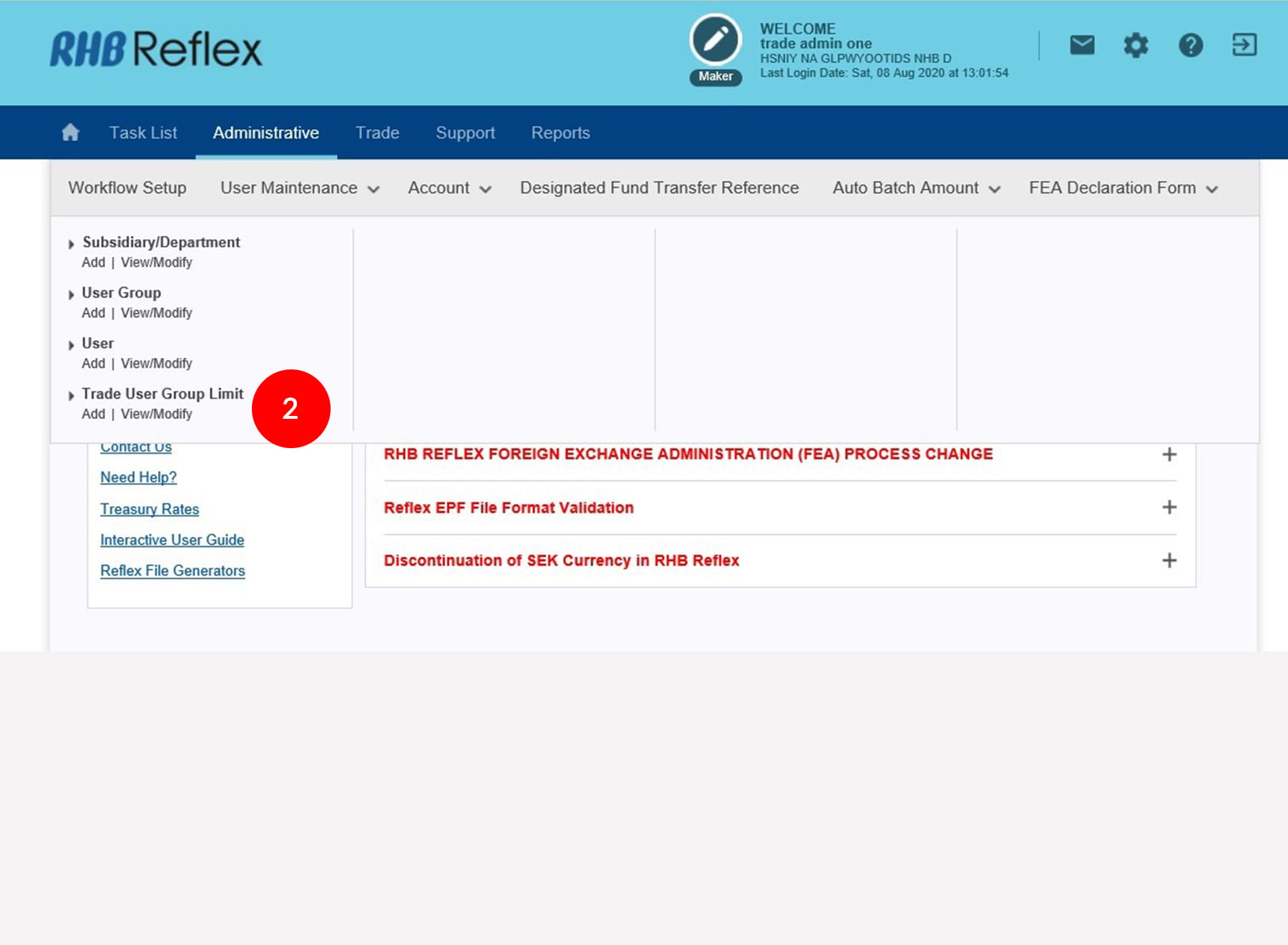
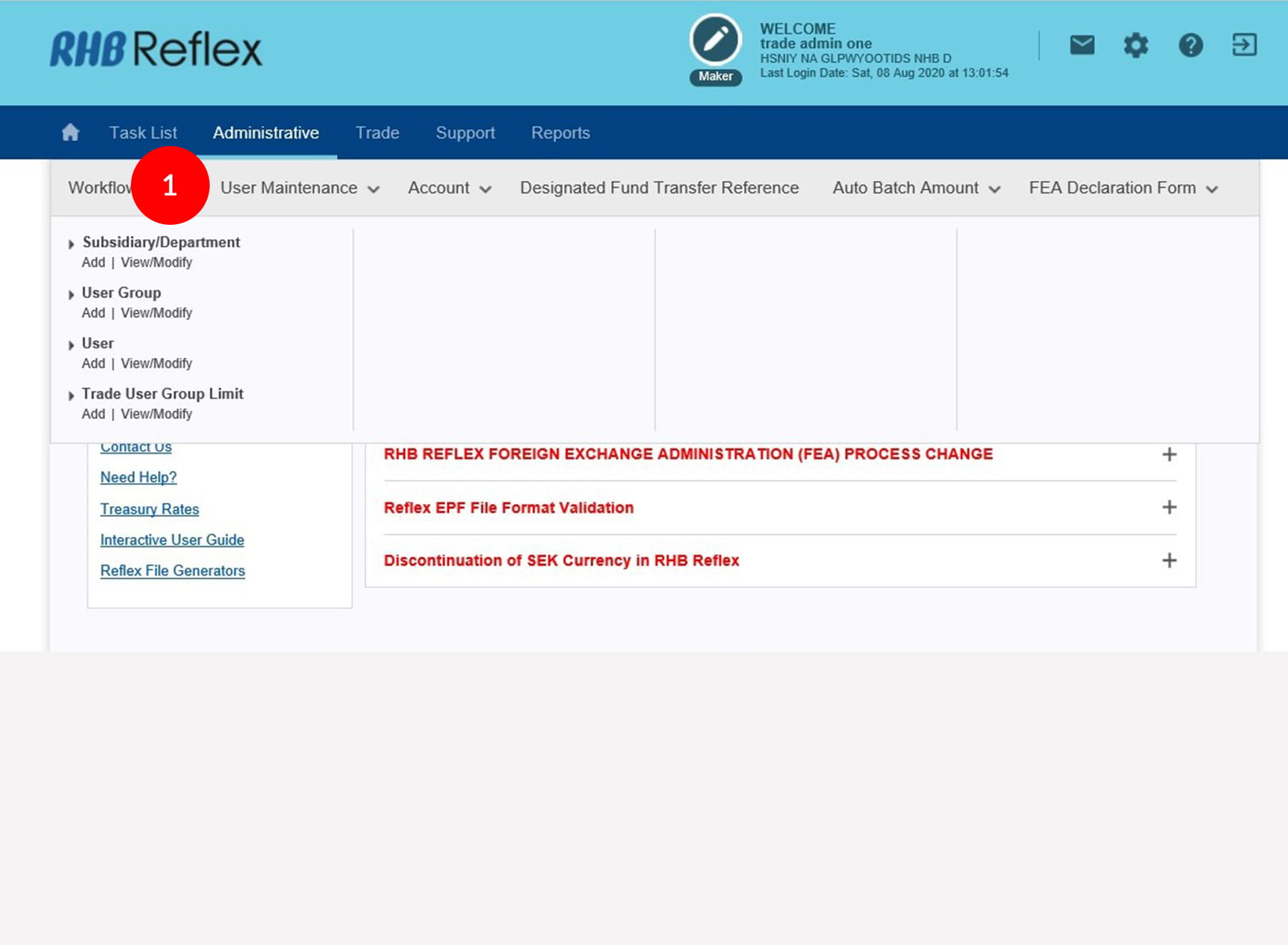
1.Login as Sysadmin1 and under the “Administrative” tab, select “User Maintenance”.
-
2.Select “Trade User Group Limit”, click "Add".
-
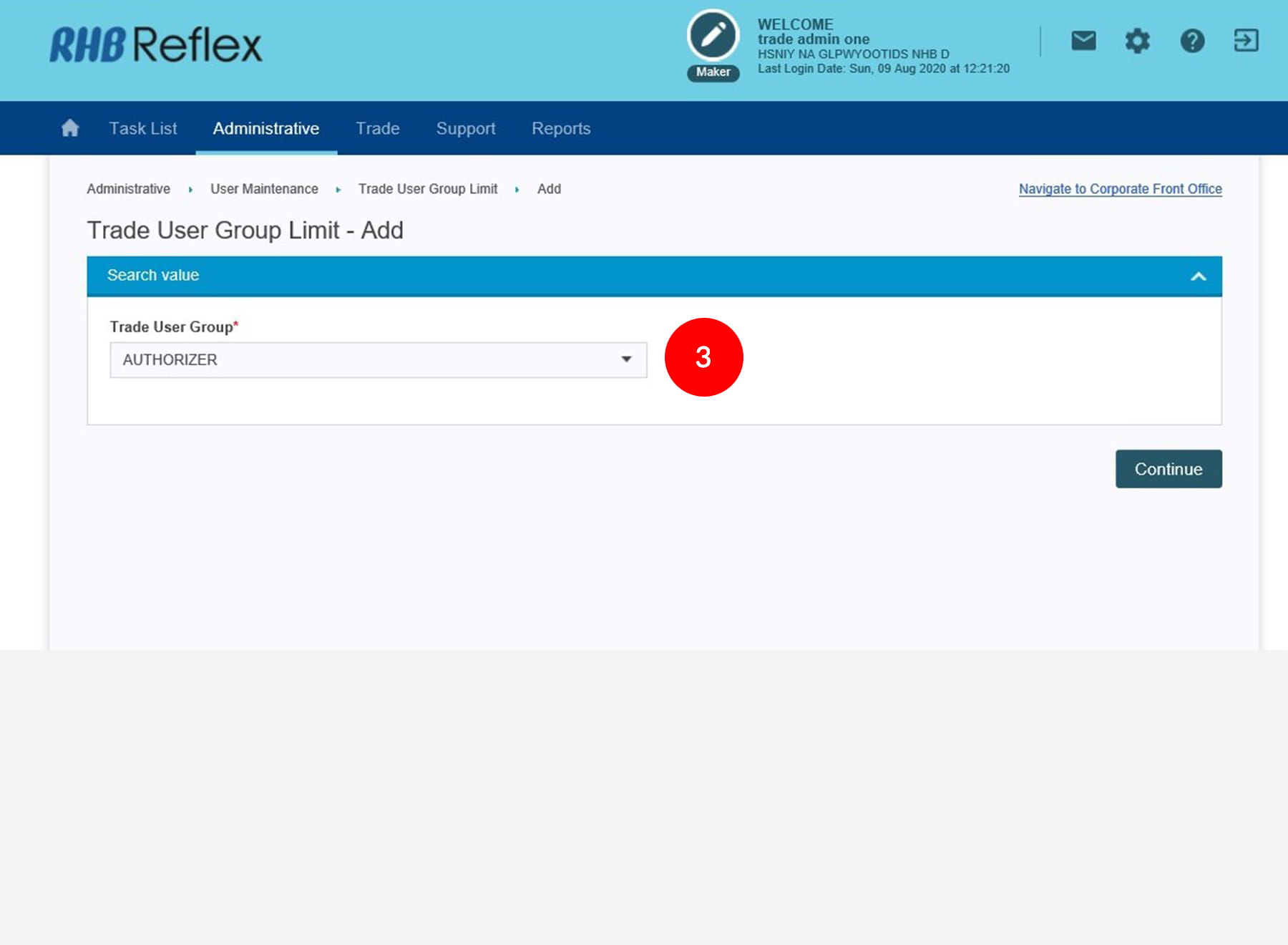
3.Select the “Trade User Group” from the drop down list.
-
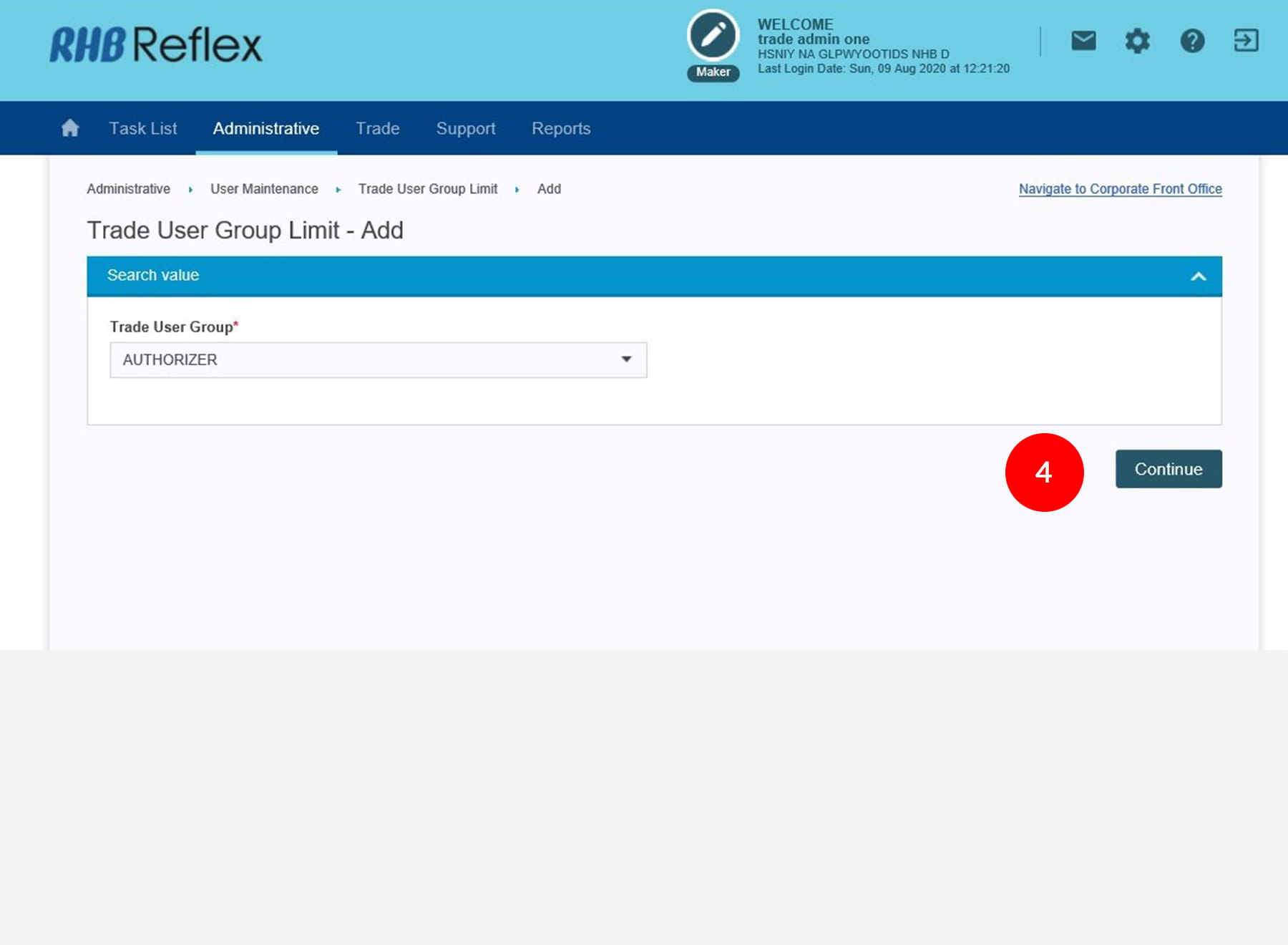
4.Click

to proceed to next step.
-
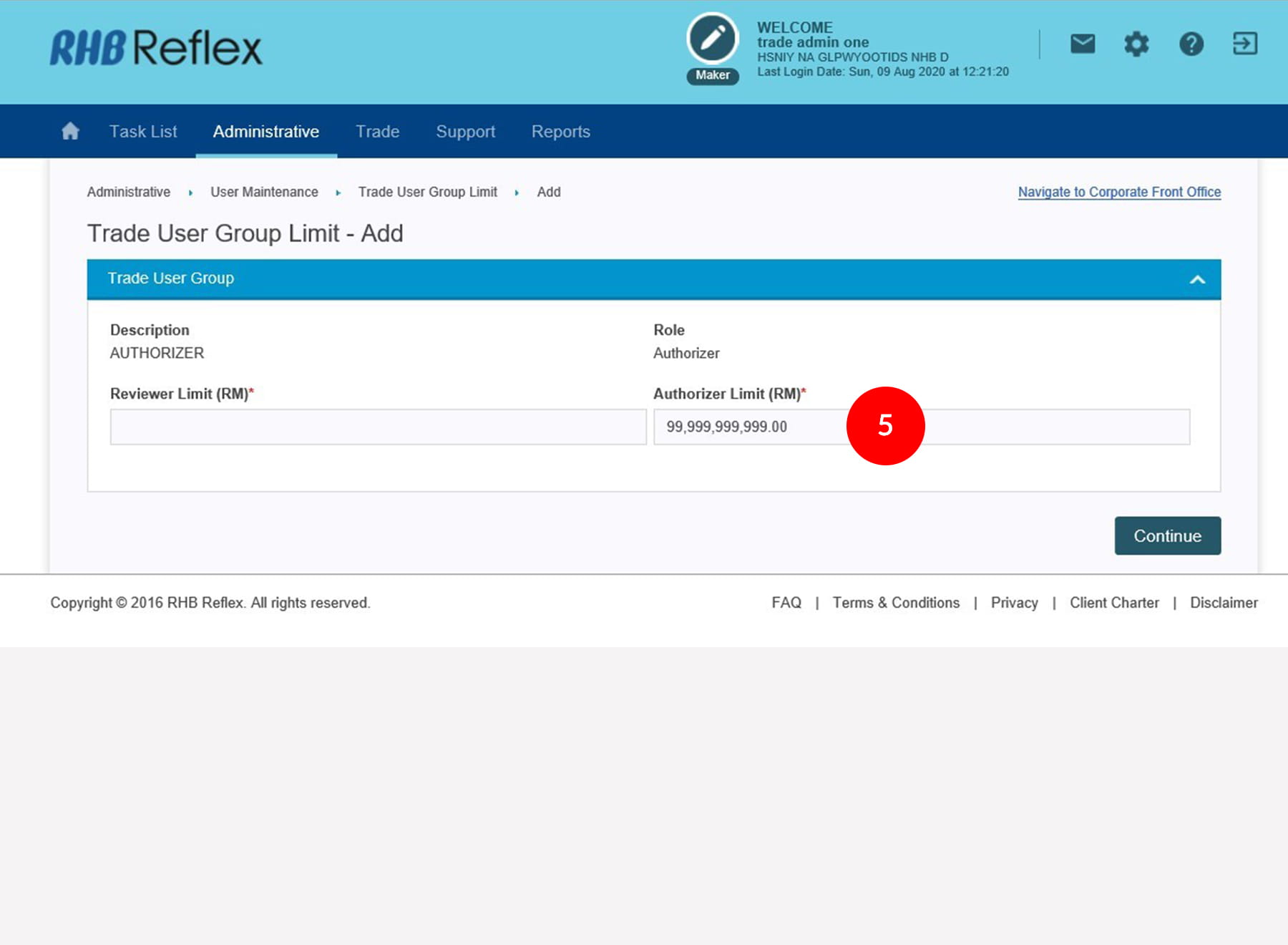
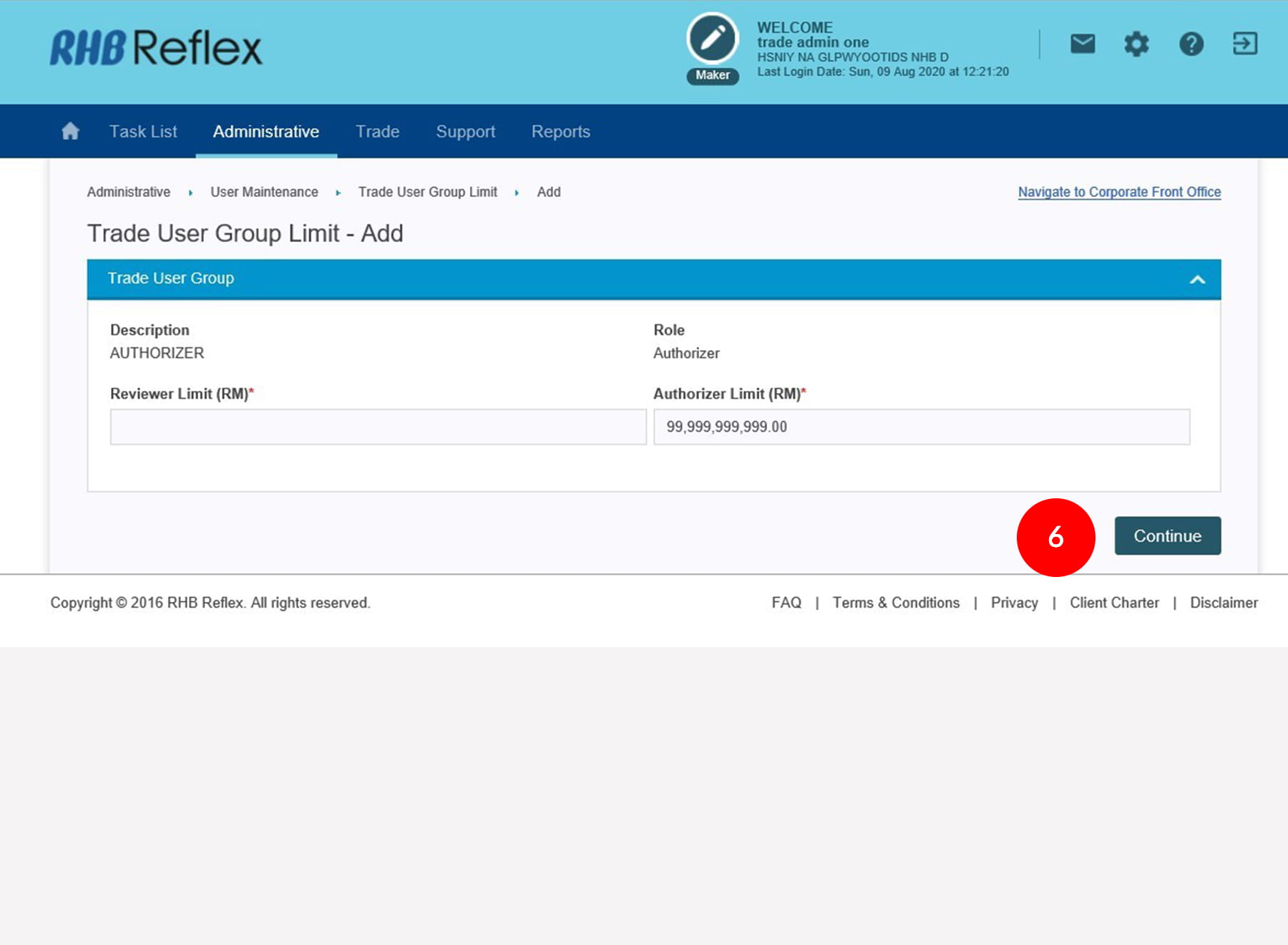
5.Type in the required Authorizer Limit as required.
-
6.Click
to proceed to preview
page. -
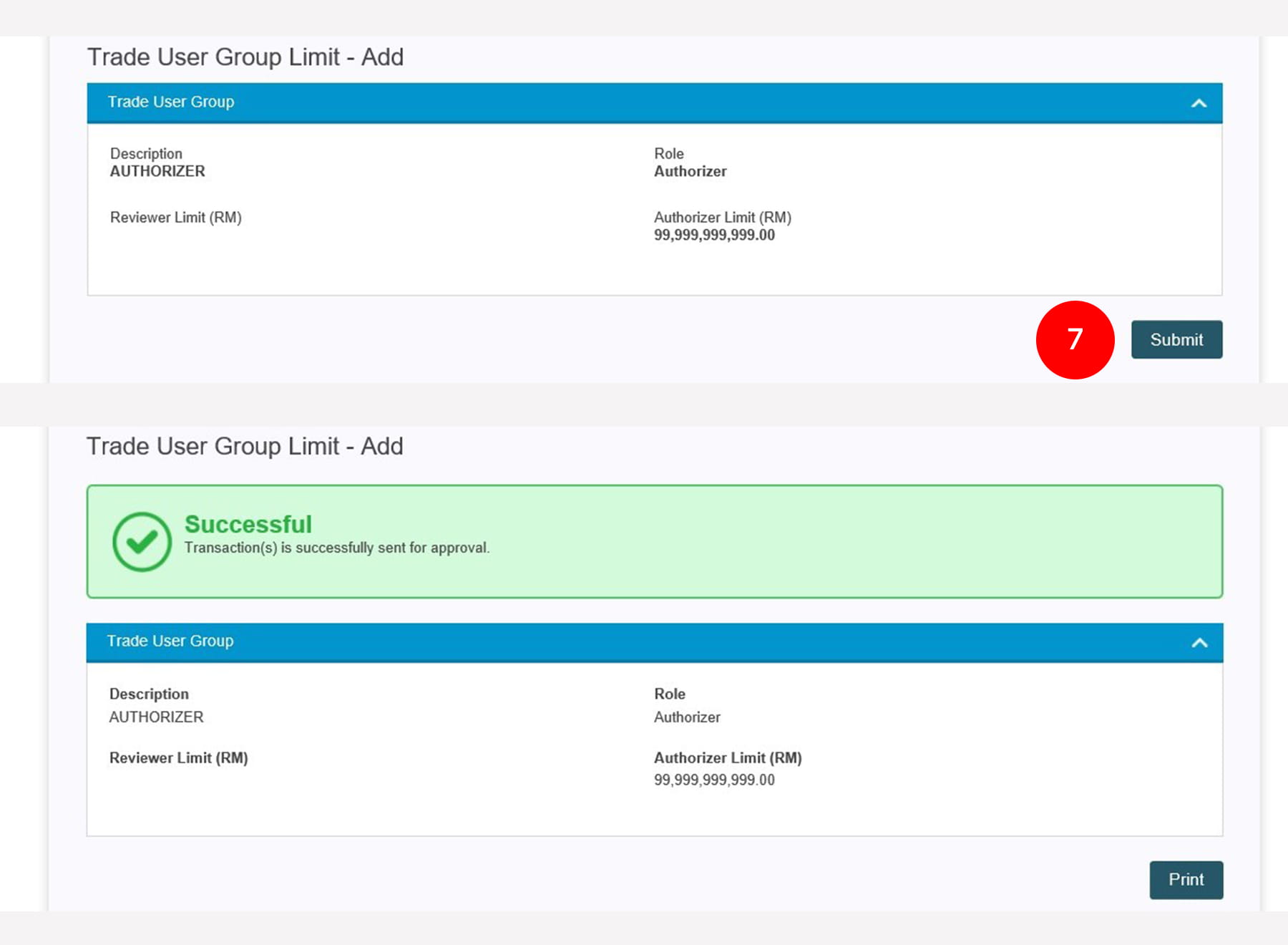
7.Click

. A message of
“Transaction(s) is successfully sent for approval” will be displayed. This indicates that
the creation has been sent to Sysadmin2 for approval. -
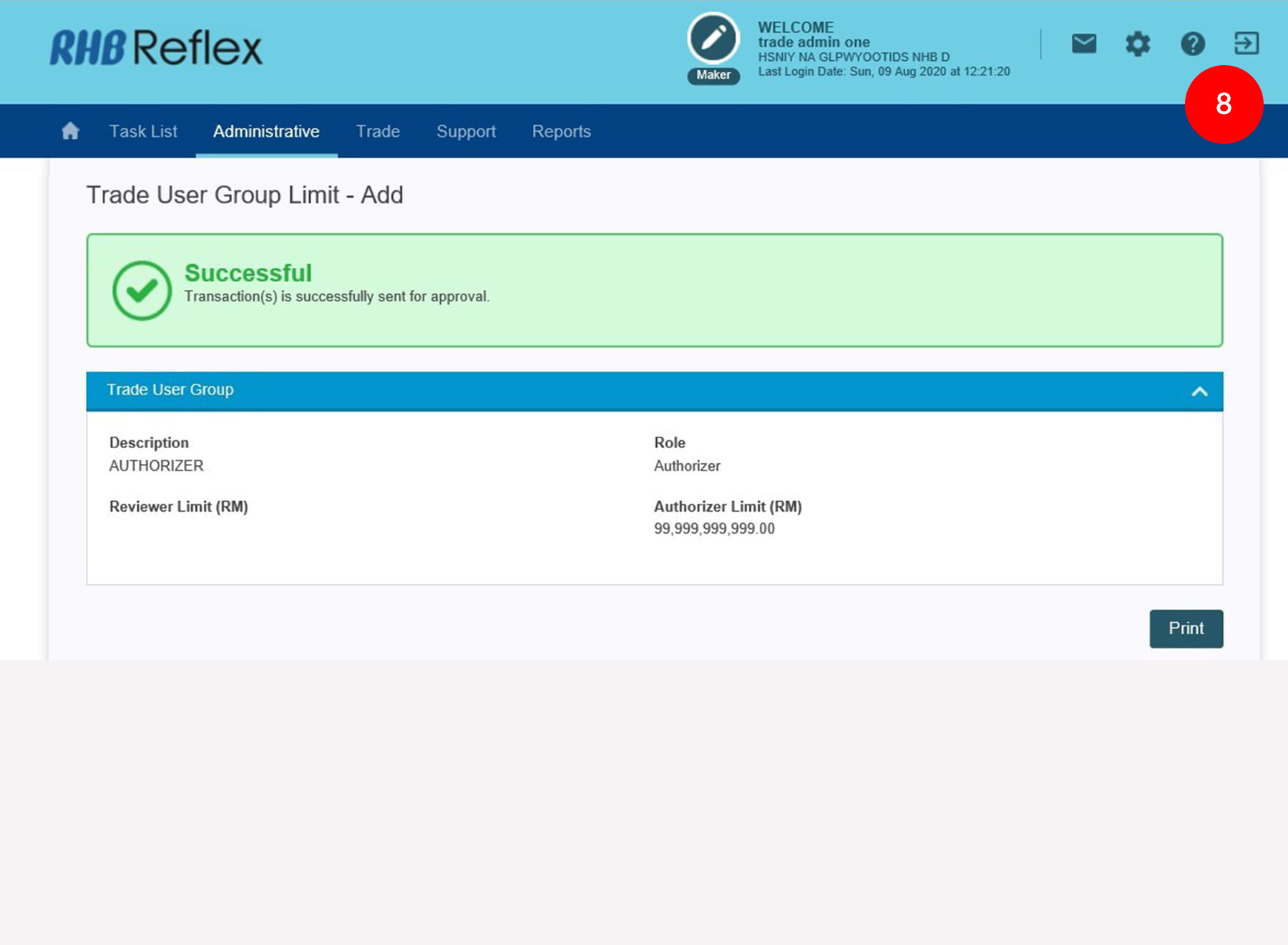
8.Click on
to Logout.
1 of 8
-
1.Login as Sysadmin1 and under the “Administrative” tab, select “User Maintenance”.
-
2.Select “Trade User Group Limit”, click "Add".
-
3.Select the “Trade User Group” from the drop down list.
-
4.Click
to proceed to next step.
-
5.Type in the required Authorizer Limit as required.
-
6.Click
to proceed to preview
page. -
7.Click
. A message of
“Transaction(s) is successfully sent for approval” will be displayed. This indicates that
the creation has been sent to Sysadmin2 for approval. -
8.Click on
to Logout.

-
1.Login as Sysadmin1 and under the “Administrative” tab, select “User Maintenance”.

-
2.Select “Trade User Group Limit”, click "Add".

-
3.Select the “Trade User Group” from the drop down list.

-
4.Click
to proceed to
next step.

-
5.Type in the required Authorizer Limit as required.

-
6.Click
to proceed to
preview page.

-
7.Click
. A message of
“Transaction(s) is successfully sent for approval” will be displayed. This indicates that
the creation has been sent to Sysadmin2 for approval.

-
8.Click on
to
Logout.